# LaunchPad Overview
Introducing the CMDB-360 LaunchPad - a simplified way to deploy multiple satellites into an environment.

LaunchPad is software that runs on a virtual machine or dedicated server, allowing you to deploy or “launch”, CMDB-360 satellites. You may launch any number of different satellites from the same LaunchPad (based on compute and memory availability).
LaunchPad uses a container technology called Docker to allow you to run any satellite container image (available on Dockerhub). In order to integrate the Docker server with the CMDB-360 Base Station graphical user interface, we have created proprietary management software that runs on your LaunchPad server and automatically integrates the systems together, providing you a simple and seamless experience in deploying satellites.
Note
What is the Difference Between LaunchPad and Satellites?
Satellites are the discovery and data access software that provides you visibility to the assets you manage for your customers. LaunchPad is simply a virtualization tool that makes deploying satellites more efficient by allowing you to deploy and run multiple satellite instances on a single LaunchPad server. You can now launch multiple satellites from a single virtual machine or server instead of having to install a virtual machine for each satellite.
# Base LaunchPad vs Remote (Customer) LaunchPads
Your CMDB-360 Base Station comes standard with a companion LaunchPad already installed and ready for use. This “base” LaunchPad however is limited in use to those satellites that gather discovery data using a public API, typically the satellites that access public cloud resources such as OCI, AWS or Azure.
In order to extend your ability to gather discovery data from customer environments, we suggest you install “remote” or customer attached LaunchPads as described in this document. Remote LaunchPads are associated with a respective customer account. This means that all of the satellites deployed from a remote LaunchPad belongs to the specified customer. You should consider deploying a remote LaunchPad for each customer account remote environment.
# How To Deploy or Install LaunchPad
LaunchPad may be deployed using a pre-built image, such as the OCI Cloud Marketplace pre-built image, the Vmware virtual template image, or it may be installed on a virtual machine or server that you provision within a customer datacenter or cloud tenancy. We suggest when possible to use the pre-built images.
# Docker Install Required
You must install the Docker server on your deployed virtual machine or server. If you are using a pre-built image or cloud marketplace image, the Docker program will be already installed and configured.
Note
Please see https://docs.docker.com/get-started/get-docker/ for instructions on downloading and installing the Docker utility.
# Supported Linux Operating Systems & Platforms
In order to operate LaunchPad, you will need a virtual machine or a dedicated server with one of these supported operating systems / platforms:
- Oracle Linux 8 (ARM and x86_64)
- Oracle Linux 9 (ARM and x86_64)
- Ubuntu 20.04 (ARM and x86_64)
- Ubuntu 22.04 (ARM and x86_64)
# Downloading Installer
To get started, simply download the graphical installer using the command below (no password required):
wget https://control.cmdb360.com/downloads/Launchpad-Installer.$(arch)
You may place the installer in the home directory of your user when you login to your compute virtual machine.
Make sure the download is executable:
chmod +x Launchpad-Installer.$(arch)
# Always Run As Privileged User (root or sudo)
Installers must be run as either root or by using sudo. To run the graphical installer for example:
sudo ./Launchpad-Installer.$(arch)
# Graphical Installer
Executing the graphical installer will present the LaunchPad Install Tool user interface as shown below:
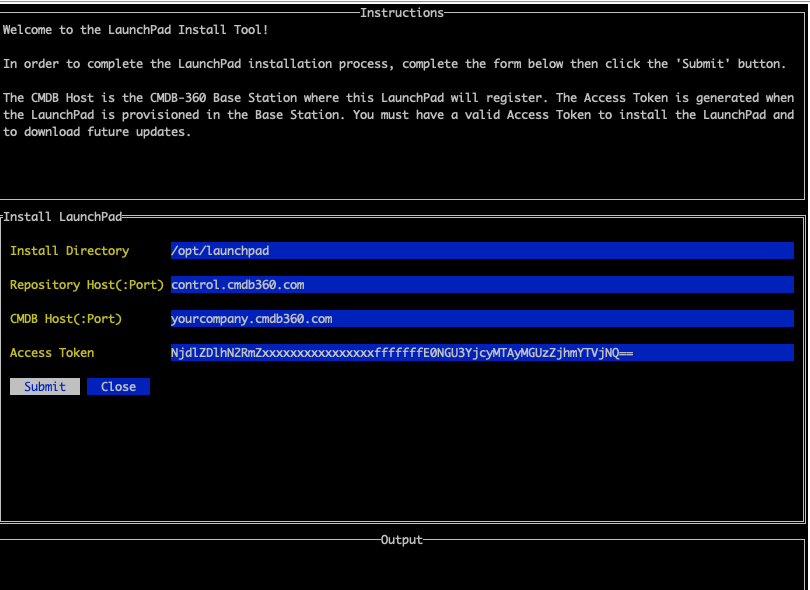
Choose the target Installation Directory (default is /opt/launchpad) and then enter the host for your CMDB-360 Base Station (and port if it is not the default SSL port of 443).
Finally enter the Access Token shown in the CMDB-360 LaunchPad Overview screen or provided by your CMDB-360 administrator.
Click the Submit button to start the installation process. You should see the Submit button change to display “Working…” as shown below:

Please wait will the LaunchPad tools are downloaded and installed. Depending on your Internet connection, this process may take 2 to 5 minutes. You will receive any output or errors in the Output section.

Once complete, simply tab to the Close button and Enter. Next reboot your system and your new LaunchPad should be fully functional.
sudo reboot