# VMware Satellite Overview
The CMDB-360 VMware Satellite provides visibility into the resources managed by a VMware vSphere deployment or individual ESXi hypervisors. VMware provides a virtualization platform for virtual machines that are deployed in both cloud and customer data centers. The VMware Satellite supports VMware deployments both on-premise and in public clouds.
Important
The VMware Satellite does not directly access any virtual machine running on your VMware vSphere or ESXi platform, instead only accessing the PowerShell PowerCLI to gather discovery and other details.
No proprietary asset information is stored on the CMDB-360 Base Station database…only simple rosters of discovered VMware resources are recorded. CMDB-360 users (with proper permissions) may obtain additional details about a discovered resource via the CMDb-360 portal the is streamed from the Satellite to the Base Station and viewed on-demand.
The VMware Satellite only requires read-only permissions to VMware to gather all required CMDB details within the deployment.
Important
You must allow access to the VMware REST API on port 443/tcp
# Main Functions
The VMware Satellite performs two core functions:
- Discovers various VMware resources within the VMware management database and regularly sends non-sensitive resource details to the CMDB3-60 Base Station for asset management.
- Provides the CMDB-360 Base Station on-demand access to asset information without storing sensitive information outside the VMware deployment.
# Managed Resources
The following VMware resources are accessed:
- Virtual Machines
- Metrics
Important
Please note that you may disable the discovery and access of any of these cloud resource objects from the Satellite scheduler. You may also disable the ability to access additional details about a cloud resource by disabling the Channel communication websocket as described below.
# Deployment / Installation
The VMware Satellite may be installed or deployed in a number of different ways:
# 1) By Using Universal Installer On Any Linux VM
You may provision any Linux compute instance running Oracle Linux 8+, Oracle Linux 9, Ubuntu 20.04, or Ubuntu 22.04 on ARM or x86_64 architecture and install the VMware Satellite software using the Installer graphical utility or the AutoInstaller non-interactive utility (for scripts). The provisioned compute instance must have at least 1 OCPU and 4GB RAM along with at least 10GB Disk.
Warning
Please note that if you install any additional software (such as security tools), you must designate at least the required minimal resources to the satellite for optimal performance.
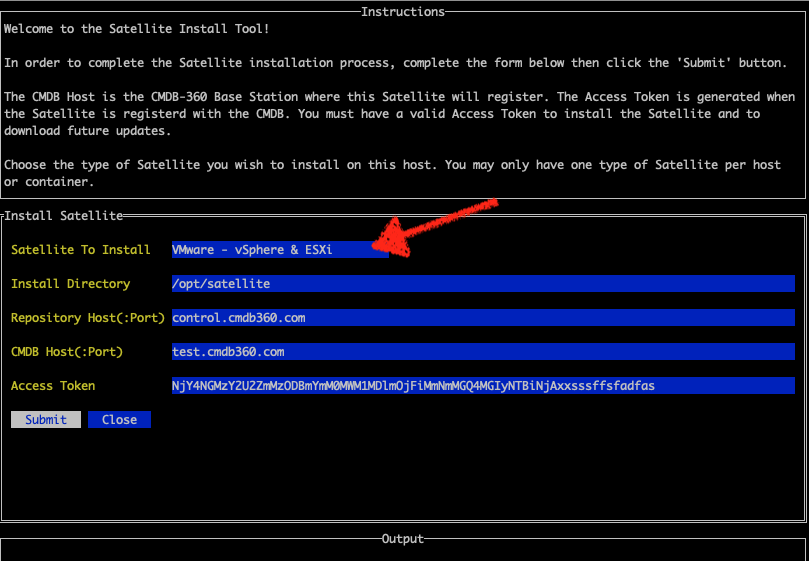
You may obtain a link to the current Installer or AutoInstaller utilities (and documentation) from your CMDB-360 portal under the deployed VMware Satellite details screen.
Note
The Installer/AutoInstaller utilities also perform the configuration described in the following section so you may skip that step.
# Install PowerShell
After installing from the Universal Installer, you must login and install PowerShell using the provided script. To perform these tasks, you must be root:
sudo su - root
Navigate to the satellite root directory. By default, this will be the /opt/satellite directory (unless you changed it during the installation process):
cd /opt/satellite
Now, run the installPwsh.sh script (you must be root user):
./installPwsh.sh
You may be asked to confirm the update of certain packages. Please answer Yes as required.
Test your install by entering the PowerShell shell, then at the prompt run the Get-Help command to validate you receive the help documentation:
pwsh

PS /opt/satellite> Get-Help Connect-VIServer -examples
# 2) By Installing a Docker Image from Dockerhub
If you have a compute instance with Docker installed, you may install the VMware Satellite using a container image from Dockerhub. Pull the VMware Satellite Docker image and run the image as a container according to the instructions provided.
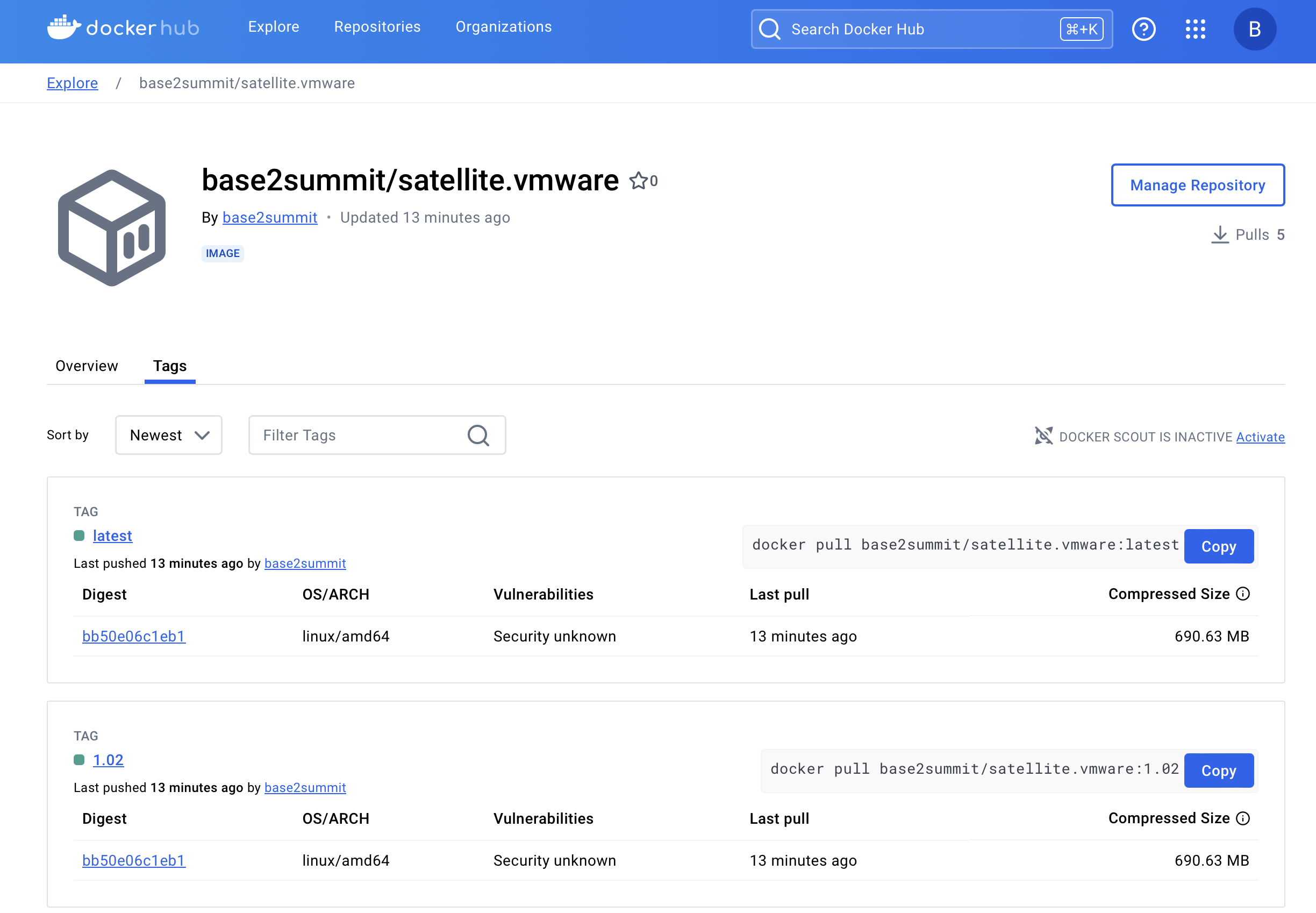
All updates to the VMware Satellite will be delivered using the internal satellite update mechanism (used by all satellites) but you may also use Docker to pull the latest version (but you will have to re-configure it).
To learn more about installing the VMware Satellite (or any Satellite) on a Docker host, see https://www.cmdb360.com/docs/?uri=Docker/Satellites/Install.html
Important
The VMware Satellite Docker image is only available for Docker running on x86_64 platforms.
# Additional Notes On Deployment
CMDB-360 recommends that the VMware Satellite be deployed and reside within the same IP space as your VMware vSphere or ESXi server in order to keep all sensitive data within the customer’s network boundary. You may however install the VMware Satellite in any other location.
# Configuration
The OEM Satellite has a 2-step configuration process. First, as with any satellite, you must configure the VMware Satellite to communicate with the CMDB-360 Base Station deployed for your company. Second, you must configure the VMware Satellite to access the VMware REST API of your VMware platform.
# 1) Connection To Base Station
All satellites are connected to their respective CMDB-360 Base Station by the URL and Token values defined in the encrypted config.yml configuration file found in the base config directory of the satellite (/opt/satellite/etc by default). This configuration file is managed by the AdminTool utility which is found in the base of the satellite install directory (/opt/satellite by default).
Please see https://www.cmdb360.com/docs/?uri=OCI-satellite/OciSatelliteSetup/OciSatelliteSetup.html for instructions about setting up the VMware Satellite to its respective Base Station.
Note
The Installer/AutoInstaller utilities perform this configuration step as part of the installation process so you may skip this step.
# 2) Configure Connection To VMware
The VMware Satellite queries your VMware vSphere or ESXi for CMDB details that are stored in the management database using the VMware REST API (typically running on port 443/tcp).
Enter the details of your VMware server using the ConfigTool utility:
cd /opt/satellite/bin

./ConfigTool
Enter the VMware Host IP or FQDN, VMware User and User Password:
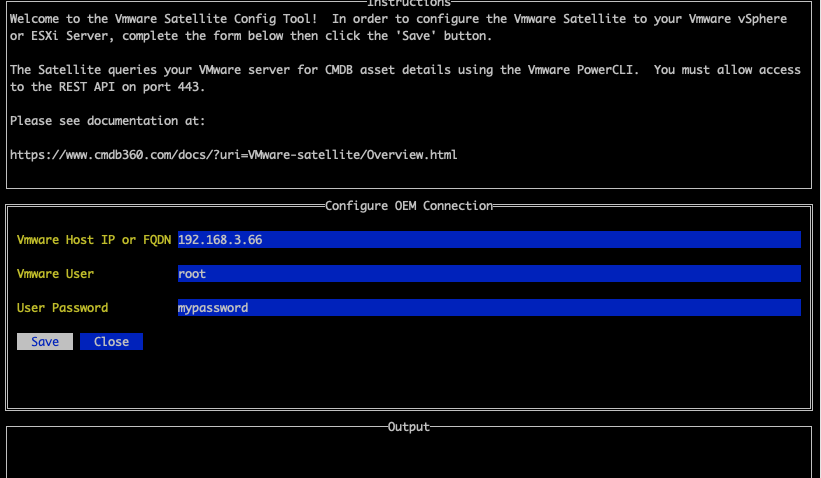
Click Save to save the changes. The VMware Satellite will now automatically begin the discovery process and connect to your CMDB Base Station.