# Installing Satellites From Docker Images
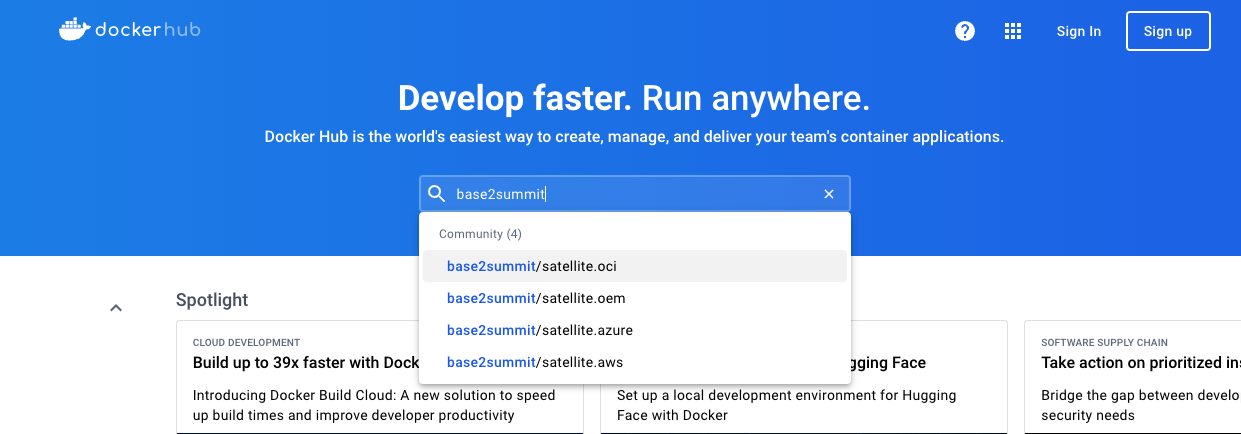
Most CMDB-360 Satellites are available to install and run as Docker containers from Docker images available from the base2summit Dockerhub repository. Public satellites are available to download without any additional authentication. The base2summit Docker Satellite repositories can be found at (or you may search Dockerhub for “base2summit”):
Note
For private satellites, you will need a private token provided to you by the CMDB-360 support team to pull these images. You must then login to the repository below using the username “base2summit” and your private token.
# Pulling Satellite Image (Latest Tag)
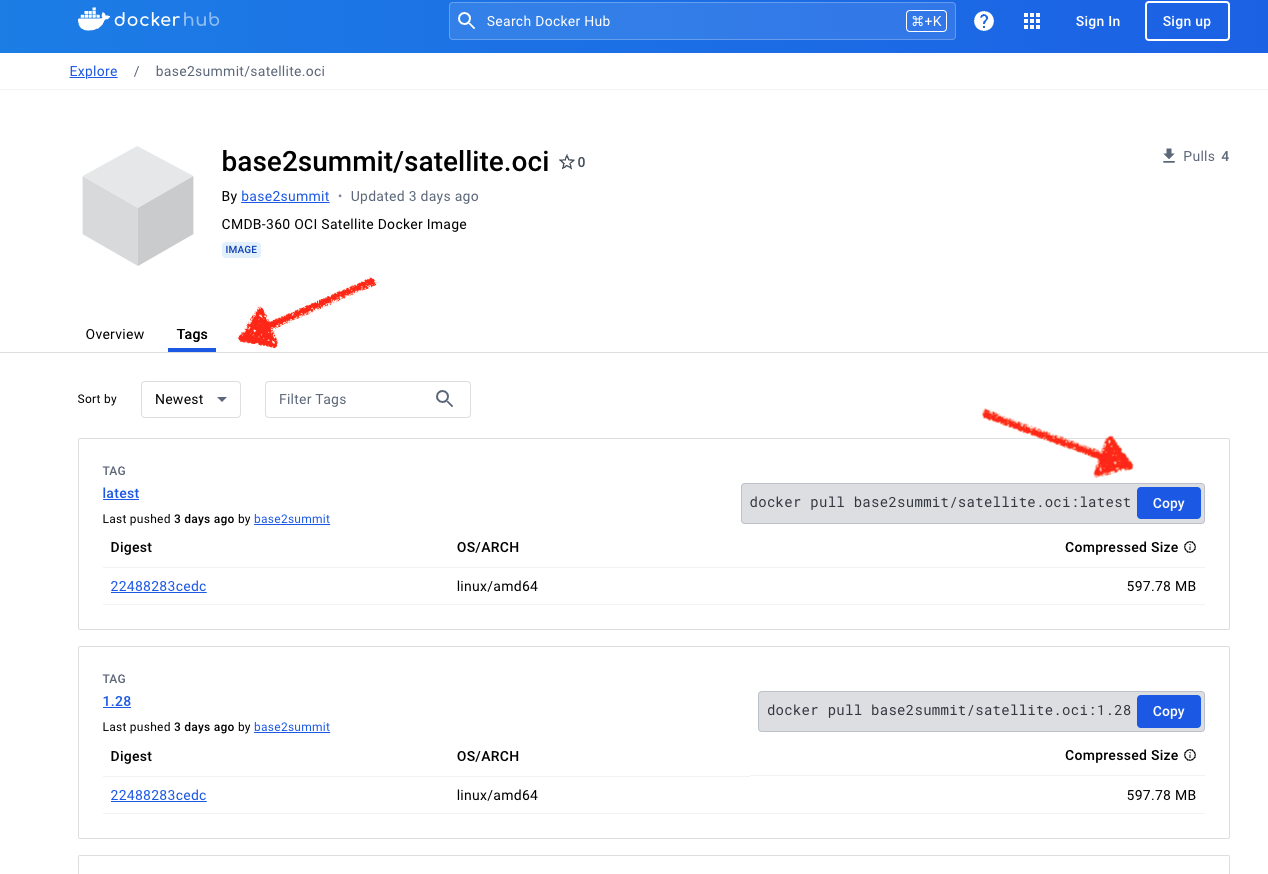
To pull a satellite image, you should use the Docker Pull Command using the latest tag. For example to pull the latest docker image build of the OCI Satellite:
docker pull base2summit/satellite.oci:latest
You can see the Docker Pull Command when you access any of the satellite repository pages (such as the one shown above). A list of all the available tags for each repository is shown (which correlates to a satellite) but we recommend you always pull the latest unless instructed otherwise by our support team.
The CMDB Satellite Overview screen will also provide the Docker Pull Command for any Satellite that has a corresponding Docker image.
Note
You may also use the Docker Desktop utility and search for the given satellite repository as well. We will not cover the use of Docker Desktop in this document, instead focusing on the Linux command line.
Once you have pulled the image, you should see it as an available image in your docker images list:
docker images

REPOSITORY                  TAG       IMAGE ID       CREATED        SIZE
base2summit/satellite.oci   latest    030b1248503a   14 hours ago   963MB
Take note of the IMAGE ID as you will need it to run the image as a container as described in the next section.
# Deploy (Run) Image As A Docker Container
To deploy the image as a Docker container, use the docker run command using the IMAGE ID. The output will be the ID of the new running container.
docker run -t -d --restart unless-stopped --name="name-you-want" IMAGE_ID

Example:

docker run -t -d --restart unless-stopped --name="my-oci-satellite" 030b1248503a
9f149e5e9b63e23072b34d3c8ccd0cb8b7db6d32538259510728c34083d6ae00
We recommend you provide the following options to docker run:
-t option- allocate a pseudo-TTY

-d option - means run detached (Run container in background and print container ID)

--restart unless-stopped option - instructs docker to always restart the container if it exists - optional for non-production (testing or lab)

--add-host xyz.cmdb360.com:IP_ADDRESS - option - if your docker container is accessing a local DNS hostname, this will update the container's host file
# See List of Running Docker Containers
You may view a list of running docker containers on your server using the docker ps command as shown:
docker ps -a
CONTAINER ID   IMAGE          COMMAND                  CREATED              STATUS              PORTS     NAMES
9f149e5e9b63   030b1248503a   "supervisord -c /etc…"   About a minute ago   Up About a minute             my-oci-satellite
Note the CONTAINER ID which will be used to connect to the container, copy files to it, and to stop and start the container. You may have noticed a longer version of this CONTAINER ID when the container was initially deployed. These IDs are interchangeable (short version works the same).
# Copy File(s) To Docker Containers
In the case of some satellites (for example OCI), you may need to copy a credentials file to the satellite. In order to do this, you may use the docker cp command from the docker host server to target the filesystem of the container (running or stopped). For example, to copy the encrypted OCI configuration file created using the OCI Terraform bundle:
docker cp FILENAME CONTAINER_ID:TARGET_PATH

Example:

docker cp config.oci.yml 9f149e5e9b63:/opt/satellite/etc/.

Successfully copied 4.1kB to 9f149e5e9b63:/opt/satellite/etc/.
Now the config.oci.yml file will be found in the /opt/satellite/etc directory of the container.
# Connect To A Running Docker Container
You may access the shell of a running docker container using the docker exec command. You will need the CONTAINER ID of the container.
docker exec -it CONTAINER_ID DESIRED_SHELL

Example:

docker exec -it 9f149e5e9b63 bash

[root@9f149e5e9b63 /]# ls
afs  bin  boot  dev  etc  home  lib  lib64  media  mnt  opt  proc  root  run  sbin  srv  sys  tmp  usr  var
The options provided to docker exec are as follows:
-t option - allocate a psuedo-TTY

-i option - interactive session

bash will be the shell you will receive - satellites offer bash and sh shells
# Stopping A Running Container
You may stop a running container using the docker stop command. You will need the CONTAINER ID of the container.
docker stop CONTAINER_ID

Example:

docker stop 9f149e5e9b63
9f149e5e9b63
You will receive the CONTAINER ID (short) on successful stop. You can see the status of the containers on your docker host using the docker ps command:
docker ps -a

CONTAINER ID   IMAGE          COMMAND                  CREATED          STATUS                          PORTS     NAMES
9f149e5e9b63   030b1248503a   "supervisord -c /etc…"   50 minutes ago   Exited (0) About a minute ago             my-oci-satellite
# Starting A Container
You man start a stopped container using the docker start command. You will need the CONTAINER ID of the container.
docker start CONTAINER_ID

Example:

docker start 9f149e5e9b63
9f149e5e9b63
You will receive the CONTAINER ID (short) on successful start. You can see the status of the containers on your docker host using the docker ps command:
docker ps -a

CONTAINER ID   IMAGE          COMMAND                  CREATED          STATUS          PORTS     NAMES
9f149e5e9b63   030b1248503a   "supervisord -c /etc…"   52 minutes ago   Up 38 seconds             my-oci-satellite