# Configuring the Azure Satellite
Once you have created the Azure Service Principal required for the CMDB360 Azure Discovery Satellite to access your resource information, there are two ways to configure the Azure Satellite.
- Through the CMDB360 Base Station (recommended)
- From the command line of the Azure Discovery Satellite
Be sure your have the information from setting up the Azure Service Principal ready for configuration. See the Configuring Azure Access document for more details about this. https://docs.cmdb360.com/docs/Satellites/Azure-satellite/ConfigureAzAccess/ConfigureAzAccess
This document assumes you have already created the Azure Discovery Satellite in your CMDB360 Base Station. If you have not, it is a simple process of selecting the Account for the new satellite. Clinking on the Integrations tab. And then clicking the ‘+ Add’ button. Satellites may be deployed to Launchpads or to their own VM. For more information on creating satellites, see the CMDB360 Base Station documentation.
# Configuring through CMDB360 Base Station
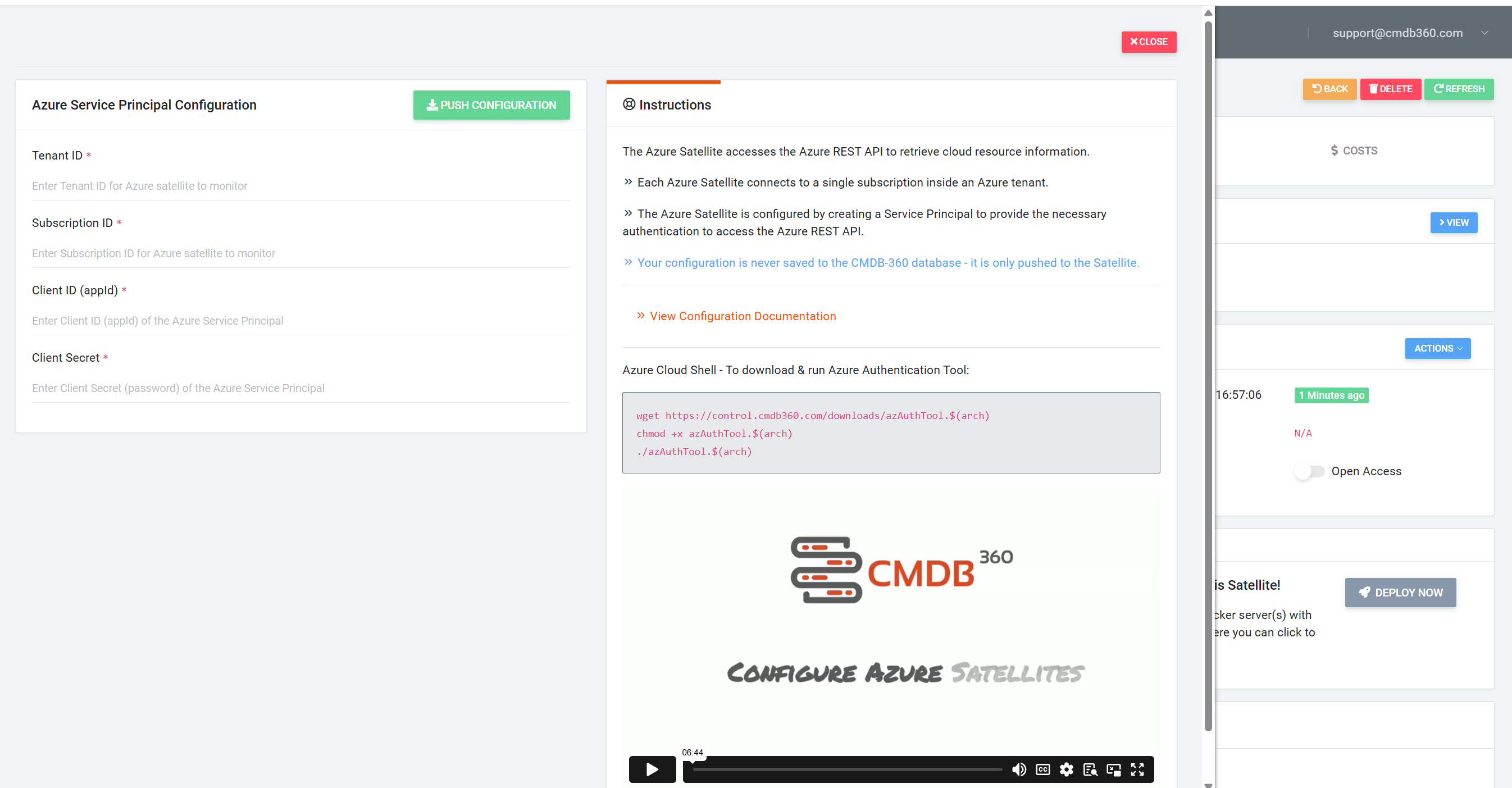
Configuration through the CMDB360 Base Station is simple and the recommended approach. Login to your CMDB360 Base Station and click ‘Satellites’ on the left menu bar. Select your Azure Discovery Satellite from the list. From the Action menu in the Satellite Connection box, choose Configure. Fill in the screen with the data your received when creating the Azure Service Principal then click the ‘Push Configuration’ button.
# Configuring on the Azure Satellite
After the Azure Satellite is deployed on an virtual machine or docker container, configuration may be performed from CMDB360 Base Station or the Linux command line of the deployed Azure Satellite using the ConfigTool. Remember, each Azure Satellite connects to only one subscription in an Azure tenant. Access to the satellite is typically through SSH.
Upon successful login, if you are not the root user, switch to root with the following command:
sudo -s
Once you have accessed the shell of the Satellite, navigate to the satellite bin directory, typically found at /opt/satellite/bin:
cd /opt/satellite/bin
Now run the ConfigTool program:
./ConfigTool
You should receive the Azure Configuration Utility as shown below:
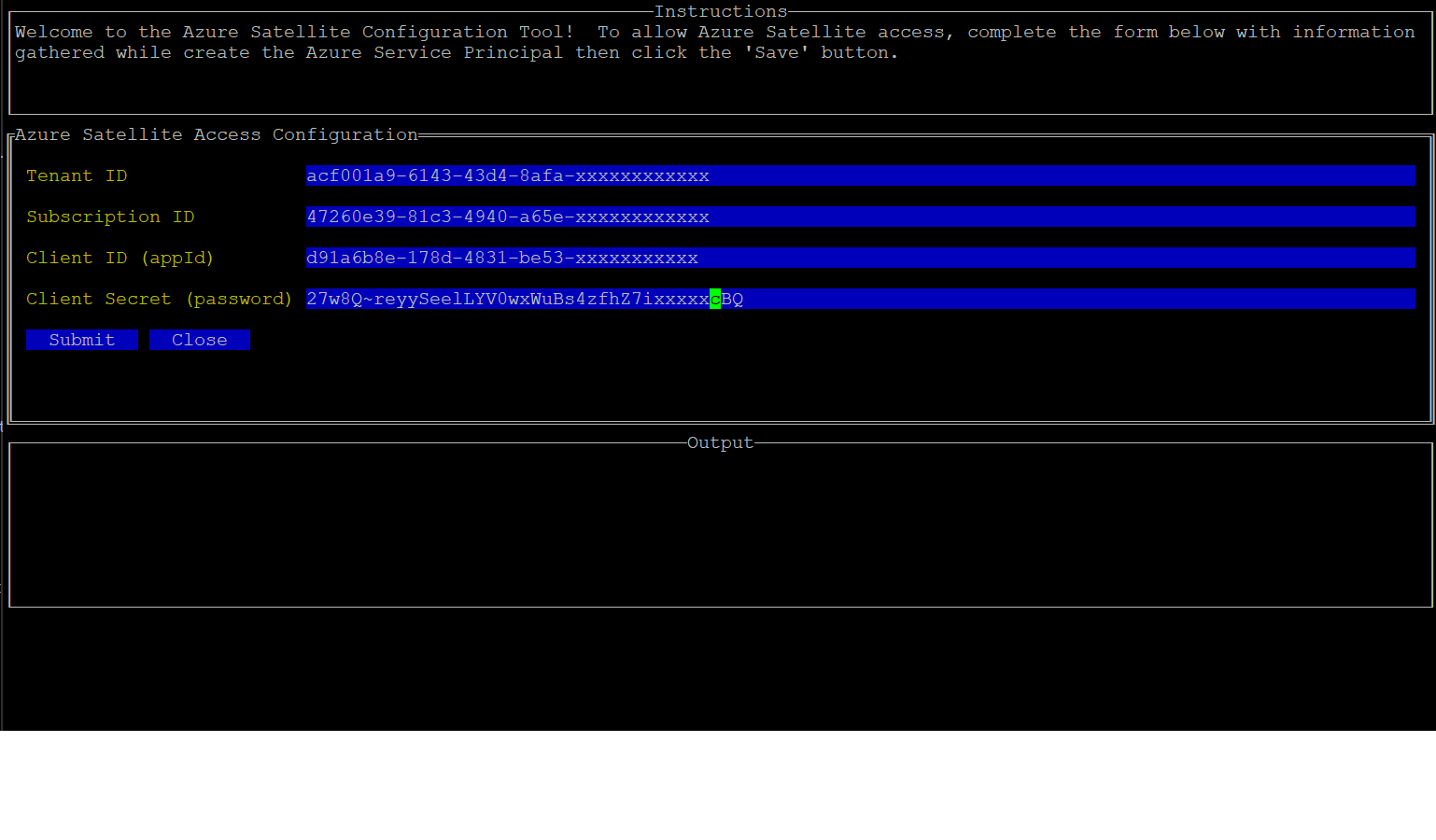
Simply enter the Tenant ID, Subscription ID, Client ID (appId), and Client Secret (password). These values were obtained when you created the Azure Service Principal with either the Azure Authorization Tool or manually in the Azure Portal. See the Configuring Azure Access document for more details about this. https://docs.cmdb360.com/docs/Satellites/Azure-satellite/ConfigureAzAccess/ConfigureAzAccess
Please note that each Azure subscription will require a separate satellite installation and configuration.