# Ansible Satellite Installation
This document explains installation options for the CMDB-360 Ansible Satellite.
# Deployment / Installation
The Ansible Satellite may be installed or deployed in a number of different ways:
- On a CMDB-360 LaunchPad
- From a cloud marketplace
- On a Virtual Machine
No matter which method is chosen to deploy the Ansible Satellite, a CMDB-360 entry for the satellite must be created first.
# Creating the Ansible Satellite entry in CMDB-360
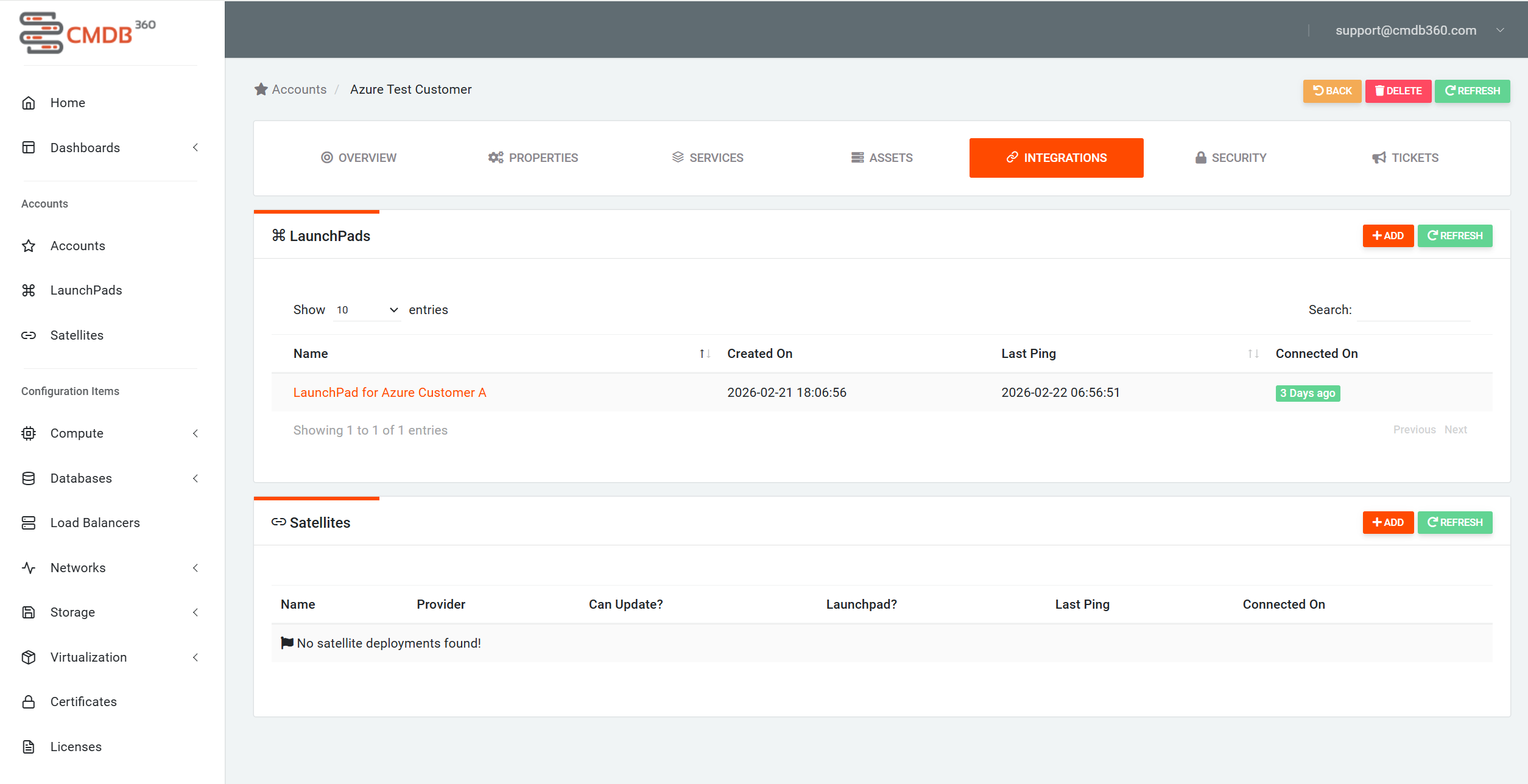
Below shows an Account with an active Remote LaunchPad (A Base LaunchPad should always exist and is not listed in the LauchPads section. To view information about the Base LaunchPad use the left side menu in your CMDB-360 portal). Click on ‘+ Add’ button in the Satellites section to create the CMDB-360 entry for a new Ansible Satellite.
Add an informative name for the new Ansible Satellite (usually something involving the Account it is connected to and/or its purpose, i.e. Customer A Lab Ansible) and select ‘Ansible Automation’ from the Satellite Type dropdown.
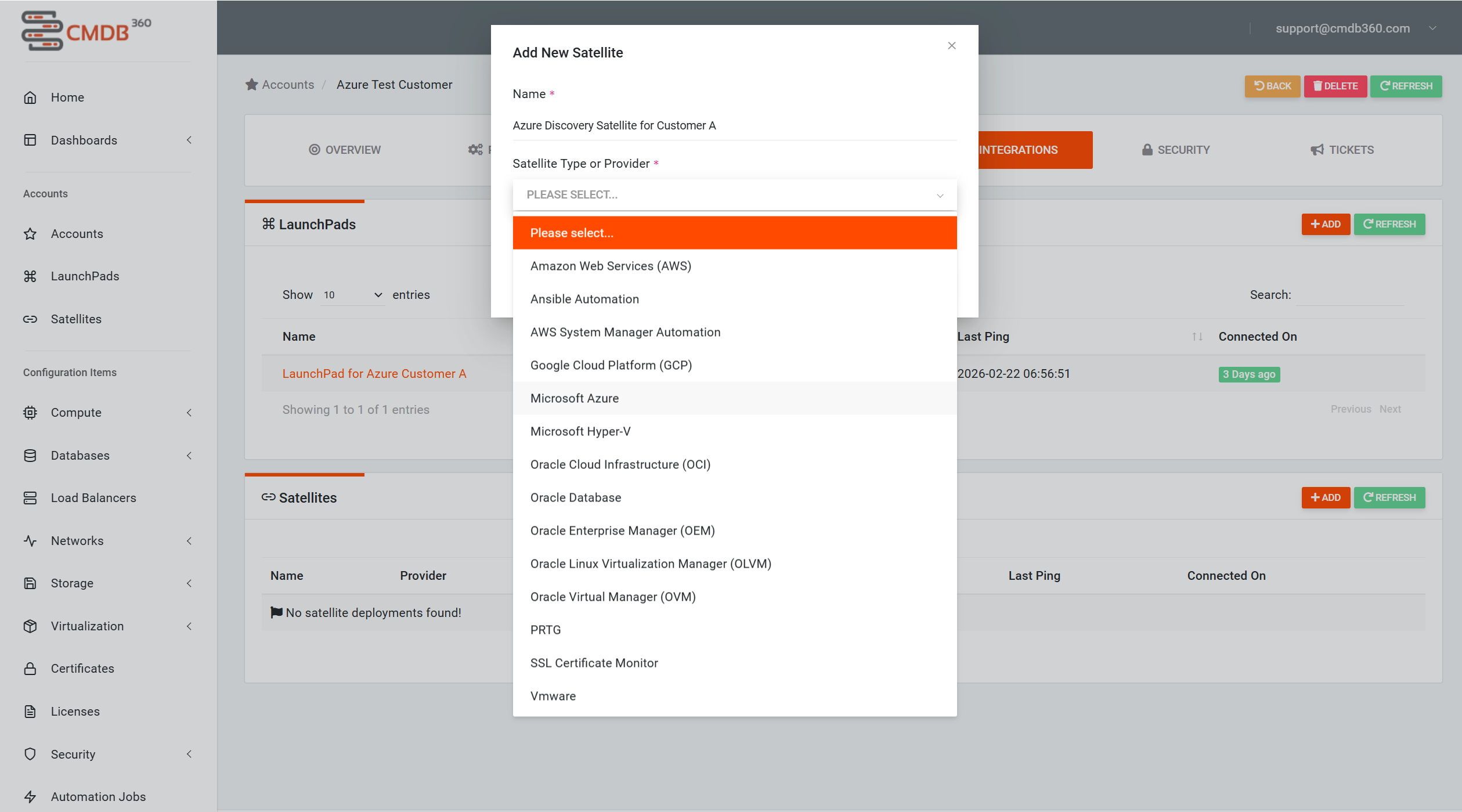
Note: The token required for connecting the Ansible Satellite to the CMDB-360 Base Station is available on the satellite’s Overview page under the Satellite & API Access Token section. This token is required for Marketplace and Virtual Machine deployments. LaunchPad deployments automatically connect to the Base Station.
# 1) On Launchpad
The quickest and easiest way to deploy an Ansible Satellite is by deploying it onto an existing CMDB-360 LaunchPad. Login to CMDB-360 portal and select the Account that associated with the satellite. Select Integrations from the menu bar on the top of the Account screen. Then select the +Add button at the top of the Satellites section to add a satellite if you do not already have the new satellite entry. Clicking the +Add will add a new entry for the new Satellite but will not deploy it.
Note: A Base LaunchPad is always deployed with your Base Station and does not show on the Accounts LaunchPads Integrations list. If you want/need a LaunchPad for this account, you may set one up here. Please see the LaunchPad documentation for more details. https://docs.cmdb360.com/docs/LaunchPad/Overview/Overview.
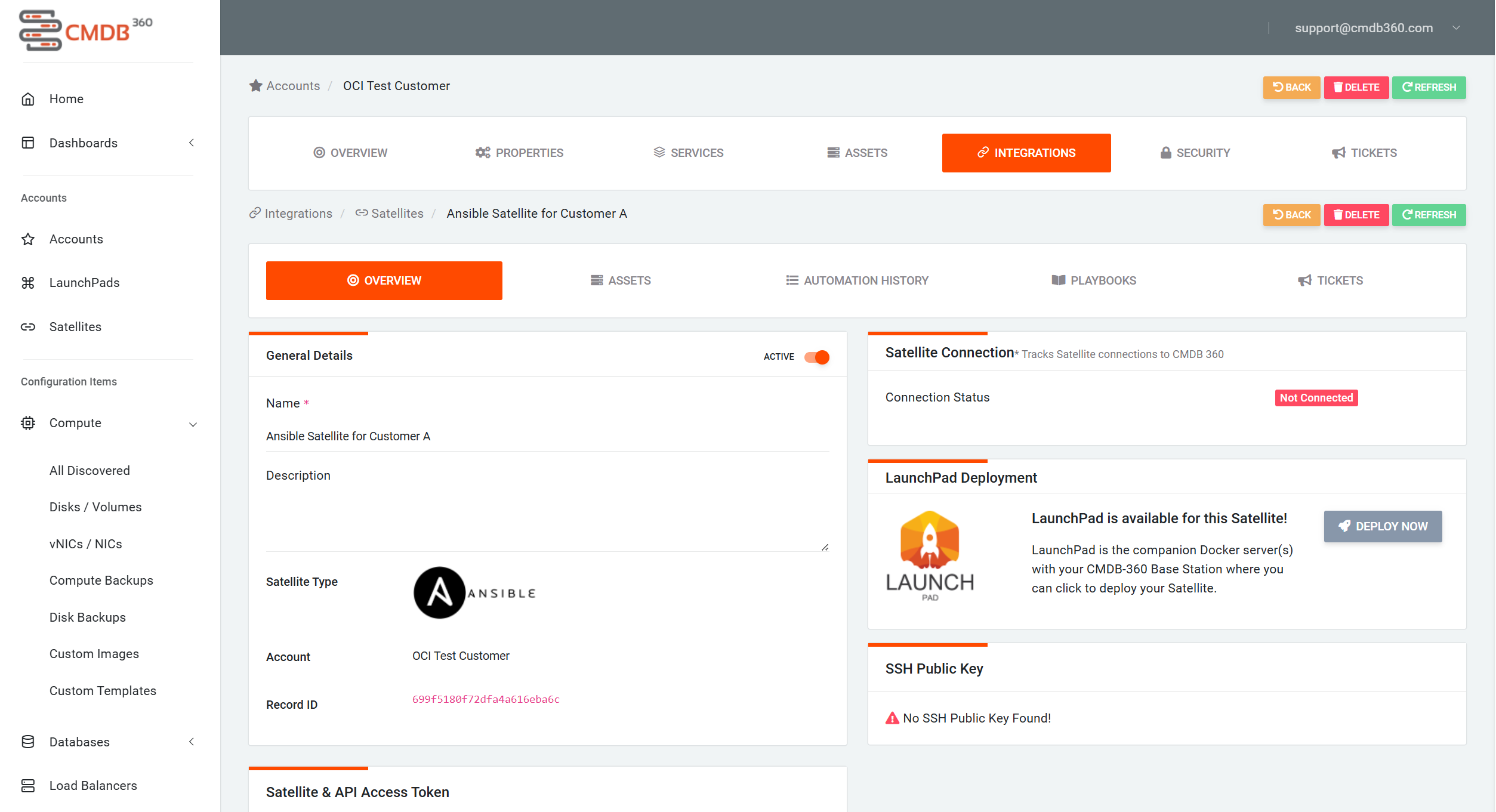
To deploy the Satellite to an active LaunchPad, click on the newly created satellite to go to the satellite’s Overview page. Click the ‘Deploy Now’ button in the LaunchPad Deployment section. Select the Launchpad to deploy to, if you have multiple. The Ansible Satellite will be launched and connected to the Base Station. Connection status can be seen in the Satellite Connection section.
# 2) From a Cloud Marketplace as a “cloud appliance”
The Ansible Satellite is available on several clouds: Azure, OCI, AWS and Google. The Ansible Satellite may be launched from the cloud marketplace as an appliance. Each cloud has validated the product listing. Search for “CMDB-360” from the cloud marketplace to find the product offering.
The product deploys an Unbuntu Linux virtual machine with the Ansible Satellite software and all associated tools pre-installed. During the deployment, configuration information (as described below) should be added to the initialization to automatically connect the new Ansible Satellite to your CMDB-360 Base Station. In Azure it is called Custom Data section under the Advanced tab. In OCI it is called Initialization Script under the Advanced Options in the Management section of the Basic Information page.
All updates to the Ansible Satellite will be delivered using the internal satellite update mechanism (used by all satellites) but you may also use the marketplaces to deploy updated versions.
When launching from a marketplace, be sure to have created an associated Ansible Satellite in CMDB-360 first, by selecting the Account for the satellite followed by the Integrations tab and selecting the ‘+ Add’ under the Satellites section. Then give the satellite a meaningful name and select Ansible Automation as the Type. When the satellite appears on the Integrations screen, click on it and copy the API Access Token. This token, along with the URL or IP address of your CMDB-360 Base Station will be used to configure the satellite as it is deployed from the marketplace.
# Initialization Data for Automatic Connection to Base Station
Paste the following into the script data field on the when launching from a marketplace. This will automatically configure the satellite to connect to your Base Station without the need to connect to the Satellite and manually configure it.
#!/bin/bash
cd /opt/satellite
sudo /opt/satellite/SetConfig --url=<cmdb360-basestation-url> --token=<cmdb360-token>
Once the Ansible Satellite is created, it should automatically connect to your CMDB-360 Base Station.
# 3) On a Virtual Machine
You may provision any Linux virtual machine running Ubuntu 24.04 on ARM or x86_64 architecture and install the Ansible Satellite software using the Installer graphical utility or the AutoInstaller non-interactive utility (for scripts). The provisioned virtual machine must have at least 2 vCPU and 8GB RAM along with at least 20GB Disk.
Please note that if you install any additional software (such as security tools), you must designate at least the required minimal resources to the satellite for optimal performance.
A document with further details about using the the Satellite Installer utility can be found at https://docs.cmdb360.com/docs/Satellites/Satellite-Installer/SatelliteInstaller
# Configuring the Ansible Satellite
It is not necessary to configure the Ansible Satellite, unless you intend to write and maintain your own playbooks. Configuring a git repository for an Ansible Satellite will allow it to pull in your customized playbooks.
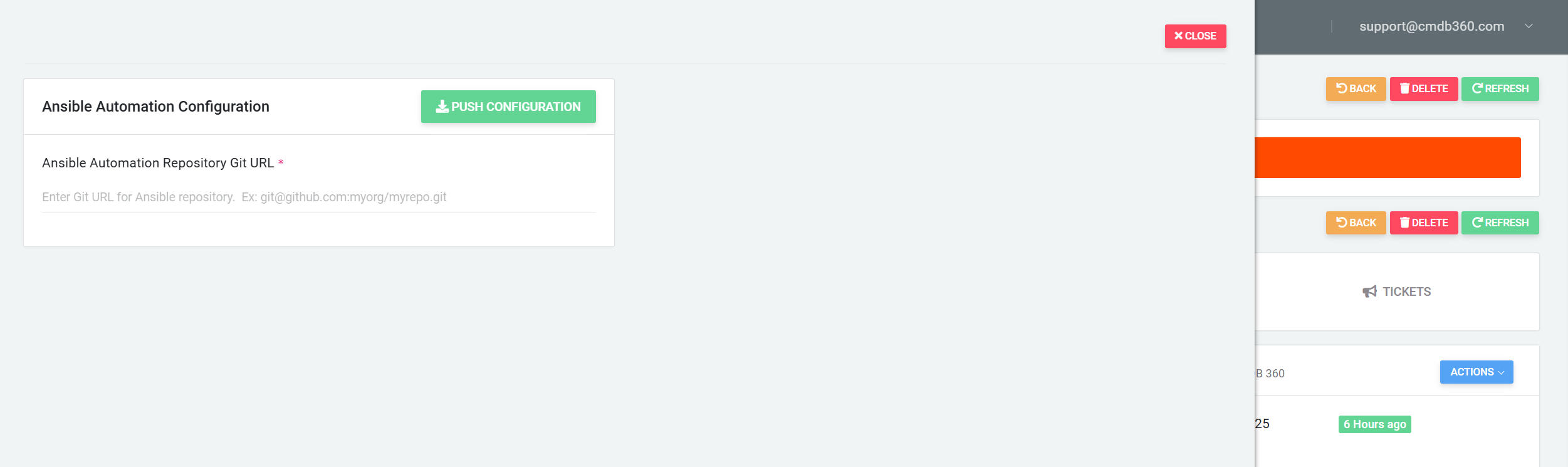
If you need to configure the Ansible Satellite, select the satellite from the CMDB-360 Base Station in the Account -> Integration page. On the satellite’s Overview page, choose Configure from the Actions menu in the Satellite Connection section. The following screen will appear to allow you to configure your Git repository for the Ansible Satellite. The configure process will create a key pair for the Ansible Satellite. Ensure that the public key displayed on the satellite’s Overview screen is added to your git repository Deploy Keys in order to give it access to your playbooks.
# Additional Ansible Satellite Information
# Notes On Deployment
See the Deployment Topologies document for information about deployment options. ( https://docs.cmdb360.com/docs/Satellites/Ansible-Satellite/Deployment-Topologies/DeploymentTopologies)
# Firewall Configuration
The Ansible Satellite (as with any satellite), must be able to connect OUTBOUND to its respective CMDB-360 Base Station and send HTTPS traffic. This is typically set up on TCP port 443 (this may vary based on your CMDB-360 Base Station configuration). Your CMDB-360 Base Station may contain a requirement to whitelist the outbound (external, WAN-side) IP Address of the Ansible Satellite (optional).
There are no inbound firewall ports required to be open for the Ansible Satellite - although please be aware that if you plan to SSH to the virtual machine where the satellite runs, you will need access (which is typically granted using ssh key pairs). You may also access the console of the Satellite VM using the Cloud Shell utility.
# Inbound Firewall Rules
None required (CMDB-360 or any other system never connects TO the Ansible Satellite)
# Outbound Firewall Rules
HTTPS via TCP Port 443 (may vary based on CMDB-360 Base Station setup)
There are only 2 destinations where your Ansible Satellite may need to connect outbound - the update (“control”) server (typically control.cmdb360.com:443) and your CMDB-360 Base Station.