# Ansible Satellite Playbooks
This CMDB-360 Ansible Satellite provides a way to manage your CMDB-360 resources. This is done using the open source Ansible software suite and leverages the existing collections for both cloud and machine management. Ansible playbooks are written in YAML format. CMDB-360 expands on the Ansible playbook format providing information about current resources in CMDB-360 and allowing the prompting users for playbook options.
# Ansible
Ansible is an open-source IT automation tool developed by Red Hat. It allows system administrators and DevOps engineers to automate repetitive tasks such as configuration management, application deployment, cloud provisioning, and orchestration — all without requiring agents to be installed on managed machines. Ansible accomplishes this by using reusable playbooks.
A playbook is a YAML file that defines a set of tasks to be executed on a host or group of hosts. For CMDB-360, playbooks are executed against a single host that is selected in your CMDB360-portal as the playbook is launched. Playbooks are the heart of Ansible — they describe the desired state of a system and the steps needed to achieve it. They are reusable making it a great way to consistently manage your assets.
# Playbook Management
The CMDB-360 Ansible Satellite comes with a standard set of playbooks that provide certain repeatable tasks. You may set up your own Git repository and modify these playbooks or write your own to accomplish whatever automation goals you desire. This Git repository can be on a public Git site (such as GitHub or Bitbucket) or on a private Git server (Gitea). For more information on setting up a private Git server see the https://docs.cmdb360.com/docs/Satellites/Ansible-satellite/Gitea-Server-Install/GiteaServerInstall or https://docs.cmdb360.com/docs/Satellites/Ansible-satellite/Gitea-Server-Install/GiteaContainerSetup and on the general usage of Git, see https://git-scm.com/book/en/v2
Each Ansible Satellite can be configured to pull playbooks from a Git repository.
In order for CMDB-360 to integrate properly and display the appropriate playbooks, the Git repository must follow a very specific directory structure.
.
└── ansible
    ├── ansible.cfg
    ├── books
    │   ├── amazon
    │   │   └── compute
    │   │   └── computeImage
    │   │   └── disks
    │   │   └── loadBalancer
    │   │   └── network
    │   ├── azure
    │   │   └── compute
    │   │   └── computeImage
    │   │   └── disks
    │   │   └── loadBalancer
    │   │   └── network
    │   ├── oracle
    │   │   └── compute
    │   │       ├── compute_start.yml
    │   │       └── compute_stop.yml
    │   │   └── computeImage
    │   │   └── disks
    │   │   └── loadBalancer
    │   │   └── network
    │   └── vmware
    │       └── compute
    │   │   └── computeImage
    │   │   └── disks
    │   │   └── network
    └── requirements.yml
The ansible directory contains your ansible.cfg and requirements.yml files. These are used to setup the Ansible configuration that will be used and list any required external dependencies for the playbooks.
The books directory contains a list of providers. A provider is a cloud or virtualization platform, such as OCI (oracle), AWS (amazon) or VMWare (vmware). The names of the providers must match exactly for CMDB-360 to find playbooks for resources on that provider.
Under each provider directory there is a CMDB-360 CI (configuration item) type directory. This separates, for instance, playbooks meant for compute instances from playbooks meant for disks or networks so that CMDB-360 will only display the appropriate playbooks for the selected item in CMDB-360.
A selection of playbooks is provided along with the CMDB-360 Ansible Satellite. But more importantly, you may modify or write your own playbooks to accomplish the tasks that your organization needs.
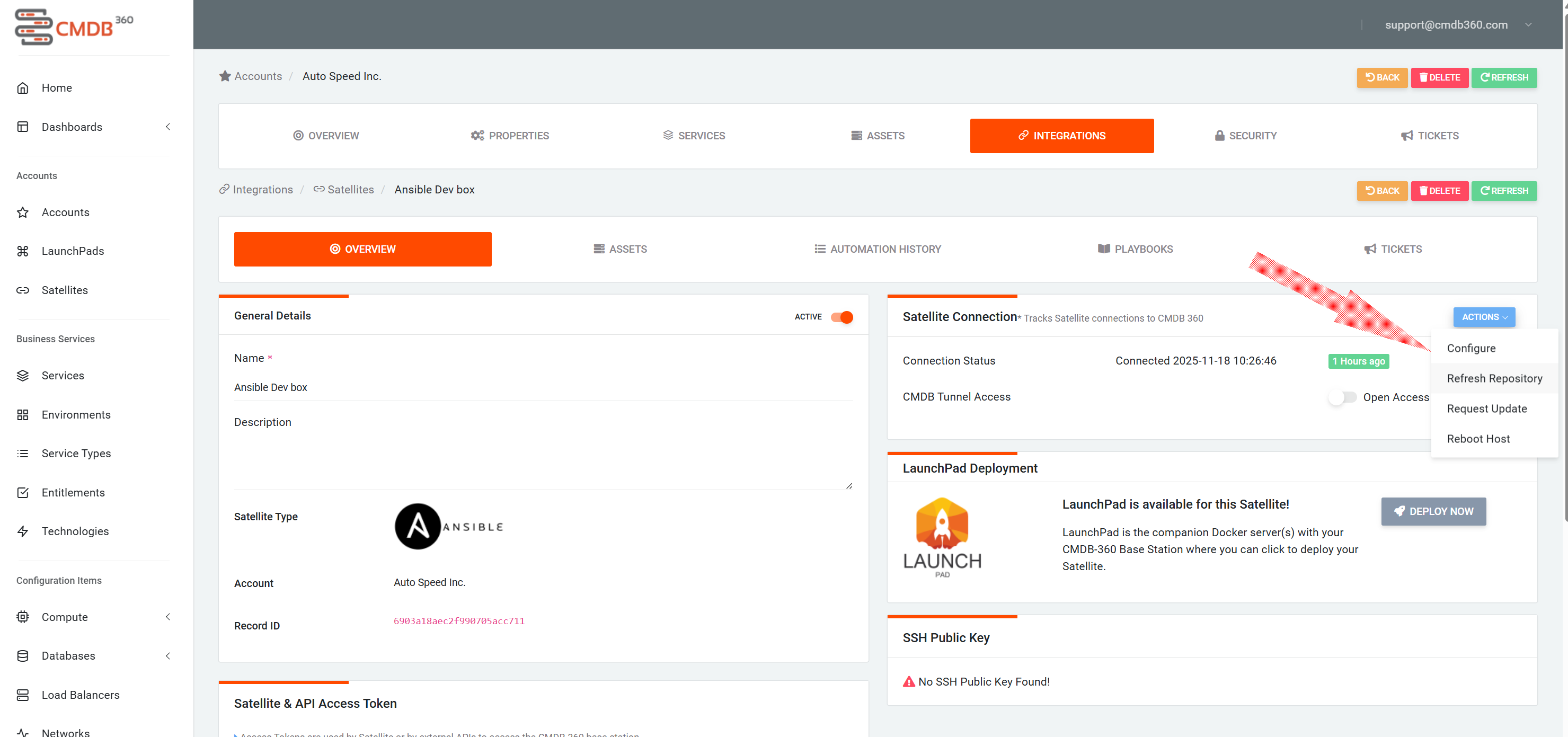
As users modify playbooks or write new playbooks, they should be pushed to the Git repository to be shared with other users and the Ansible Satellites. The Ansible Satellite will update any changes made to the repository every night. However, you can force an update from the Satellite Overview page in CMDB-360 for the Ansible Satellite by selecting Refresh Repository from the Actions menu
# CMDB-360 Playbooks
The currently selected resource in CMDB-360, (the CI, configuration item) determines which playbooks are displayed for the user to run. When that playbook is executed, CMDB-360 will automatically populate Ansible variables for the playbook with data about the current CI. Here is a simple playbook that stops an OCI Compute Instance.
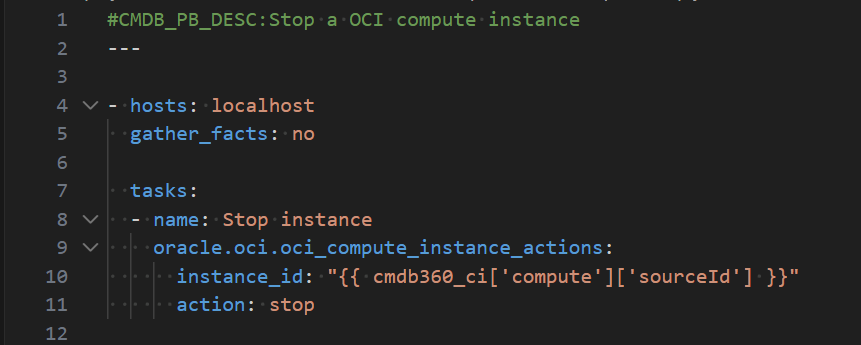
Line 1: Begins with a ‘#’. In Ansible, the hash mark denotes a comment and anything after it it ignored. CMDB-360 uses specific comments for certain purposes discussed below.
Line 4: The inventory that this playbook will run on. CMDB-360 provides a dynamic inventory to the playbook. So, in general this will be ‘localhost’ when only cloud functions are being called (for reasons discussed below) and ‘all’ when machine access (ssh, winrm or ssm) is required.
Line 5: This playbook does not use facts about the localhost so to save time, there is no need to gather them. If you are not connecting to the machine via ssh, winrm or ssm then gathering facts will only give you facts about the Ansible Satellite not the remote machine
Line 8: The Stop instance task. The oci_compute_instance_actions module is provided by the OCI collection. Parameters instance_id and action are passed in to it. Note that the instance_id is a variable provided by CMDB-360 and contains the OCID of the Compute Instance that CMDB-360 currently has selected.
# CMDB-360 Data in Playbooks
CMDB-360 will provide Ansible variables to playbooks based on currently selected CI item. The provided data varies depending on the CI type selected ang the could it resides on. In order to list all the variables, a simple playbook can be written to debug the following to variables: cmdb360_cloud and cmdb360_ci.
# Job Id
The CMDB-360 Job Id for this automation run is provided in the variable cmdb360_job_id.
# Location
Cloud information is provided in the variables of the form cmdb360_location['var_name']. Region and grouping information is provided. The variable names depends on the cloud where the CI resides. In the case of OCI, for example, there is region, compartmentId and compartmentName. While Azure has region, resourceGroupId and resourceGroupName.
# Compute
Compute variables will be of the form cmdb360_ci['compute']['var_name']
var_name is one of the following:
id: the CMDB-360 id of the CI
name: the name of the CI
sourceId: the cloud ID of the CI
osFamily: the OS family, linux or windows
ipAddress: the private ip address of the CI
macAddress: the mac address of the CI
user: the ssh user that was used to connect to the VM
# Disks
Disk variables will be of the form "{{ cmdb360_ci['disks']['var_name'] }}"
var_name is one of the following:
id: the CMDB-360 id of the CI
name: the name of the CI
sourceId: the cloud ID of the CI
# Network
Network variables will be of the form "{{ cmdb360_ci['network']['var_name'] }}"
Compute variables will be of the form cmdb360_ci['compute']['var_name']
var_name is one of the following:
id: the CMDB-360 id of the CI
name: the name of the CI
sourceId: the cloud ID of the CI
# Compute Images
Compute Image variables will be of the form cmdb360_ci['computeImage']['var_name']
var_name is one of the following:
id: the CMDB-360 id of the CI
name: the name of the CI
sourceId: the source ID of the CI, for Oracle OCI it is the OCID
#
# CMDB-360 DSL Header to Playbooks
CMDB-360 makes use of comments lines at the top of playbooks to provide a DSL (Domain-Specific Language) allowing playbooks to have CMDB-360 specific functions.
Note: each line must start with the ‘#’ character in column 1 immediately followed by the CMDB-360 specific term
# Description
#CMDB_PB_DESC - A simple single line description of the playbook describing what this playbook does`
A short description of what the playbook does.
# Host Connection
#CMDB_PB_HOST_CONN - Type of connection required for playbook to run
The host connection type can be one of the following: cloud, ssh, winrm or ssm. It is required if the playbook needs to connect to the host on order to run commands directly on it. This also determines which credentials are prompted for as the playbook is run. If this line does not exist, ‘cloud’ is the default.
For cloud only connections you may run any commands in the related Ansible collection for that cloud, but not most of the standard Ansible commands that would access machine features. The gather_facts should be set to false, as there will be no actual connection to the remote machine and any facts gather would be for the Ansible Satellite itself.
You must include cloud connection along with ssh, winrm or ssm to allow use of the cloud modules along with the other connections, since the cloud type will prompt for cloud credentials while the other types will prompt for their necessary credentials. These are provided as a comma separated list (i.e. #CMDB_PB_HOST_CONN: cloud, ssh) , but cloud module tasks must then be delegated to the Ansible Satellite (control node) using the delegate_to: localhost feature. Only cloud type may be combined with the other types.
For both ssh and winrm, the some login information (like user and port) is set in the ‘System Access & Defaults’ area under the compute’s Properties tab. The rest of the credentials required are stored in your credentials file and CMDB-360 vault entry.
The ssm connection type provides access to the machine via ssm connection rather than ssh, using the same credentials as the AWS cloud requires.
# Notice
#CMDB_PB_NOTICE - A notice to be displayed to the CMDB user before the playbook is run
Shows a message on the final page of the Automation Wizard
# Confirm
#CMDB_PB_CONFIRM - A confirmation requirement from the user. Useful when the user is about to run a destructive playbook to ensure they want to do it
Display a pop-up modal box prompt the user with the text string and giving a Confirm or Cancel button
# Options
CMDB-360 provides options for the playbook as a way for users to pass in needed data. Options are defined in the DSL header and must follow the YAML format as the rest of the playbook does, just with the comment character (#) as the first character in the line. Options begin with the option name and have the following fields: type, required, desc, default, values (if type is choice). Options are available as an Ansible variable in your playbook.
#CMDB_OPTIONS START - Begin the options section
#option1_name
#  type: the type of the option (string, int, etc) . These are listed below. This is a required field
#  required: is this option required to launch the play or may it be left blank. This is a required field
#  desc: a short description to be displayed above the input of the option. This is an optional field
#  default: default string to preload the input box. This is an optional field
#  values: if the type is choice, the list of possible values. If this option is required the top value is the default
#    - value1
#    - value2
#option2_name
#  type: string
#  required: y
#  desc: enter a string
#  default: default string to preload the input box. This is an optional field
#  values: if the type is choice, the list of possible values. If this option is required the top value is the default
#    - value1
#    - value2

#CMDB_OPTIONS END - End the options section

Example:
#CMDB_OPTIONS START
#str_var1
#  type: string
#  required: y
#  desc: this is a string input
#  default: default string
#int_var1
#  type: int
#  required: n
#  desc: input a number
#int_var2
#  type: int
#  required: y
#  default: 42
#  desc: input another number
#tf_var1
#  type: choice
#  required: y
#  desc: true of false - will default to true since it is first
#  values:
#    - true
#    - false
#CMDB_OPTIONS END
---

- hosts: localhost
  gather_facts: no

  tasks:
  - name: print two of the options values
    debug:
      msg: "str_var1={{ str_var1 }}  int_var2={{ int_var2 }}"

  - name: print a non-required option value, only when it was provided
    debug:
      msg: "int_var1={{ int_var1 }}"
    when: int_var1 is defined
Note: A non-required option may lead to a undefined variable in the playbook if a value is not supplied by the user. This can be handled by checking in the playbook if the variable is defined
Currently an option can be one of the following types
string - a character string
int - an integer
choice - a list of possible choices, requires values list
textbox - send base64 encoded text data to playbook
file - send base64 encoded file data to playbook
select_subnet - a list of available subnets
select_route_table - a list of available route tables
select_security_list - a list of available security lists or groups
select_security_groups - a list of available security lists or groups
select_nat_gateway - a list of available NAT gateways
select_shape - a list of available VM shapes/sizes
select_lb_listener - select listener of a load balancer
select_lb_cert - select SSL certificate of a load balancer
select_oracle_compartment - a list of available OCI compartments
select_oracle_ad - a list of OCI Availability Domains
select_oracle_block_volume - a list of availble OCI block volumes
select_aws_az - a list of available AWS Availability Zones
select_azure_resource_group - a list of available Azure Resource Groups
select_azure_region - a list of Azure locations(regions)
select_waas_cert - a list of SSL certificates of a WAAS
select_waas_policy - a list of policies of a WAAS
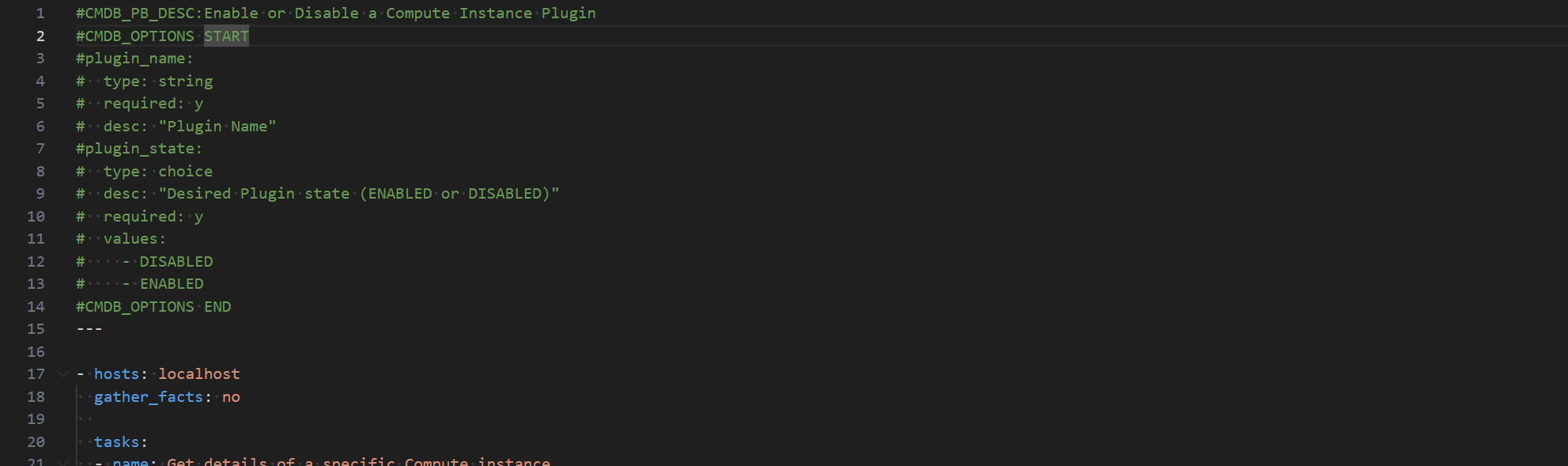
Below are some examples of options for playbooks:
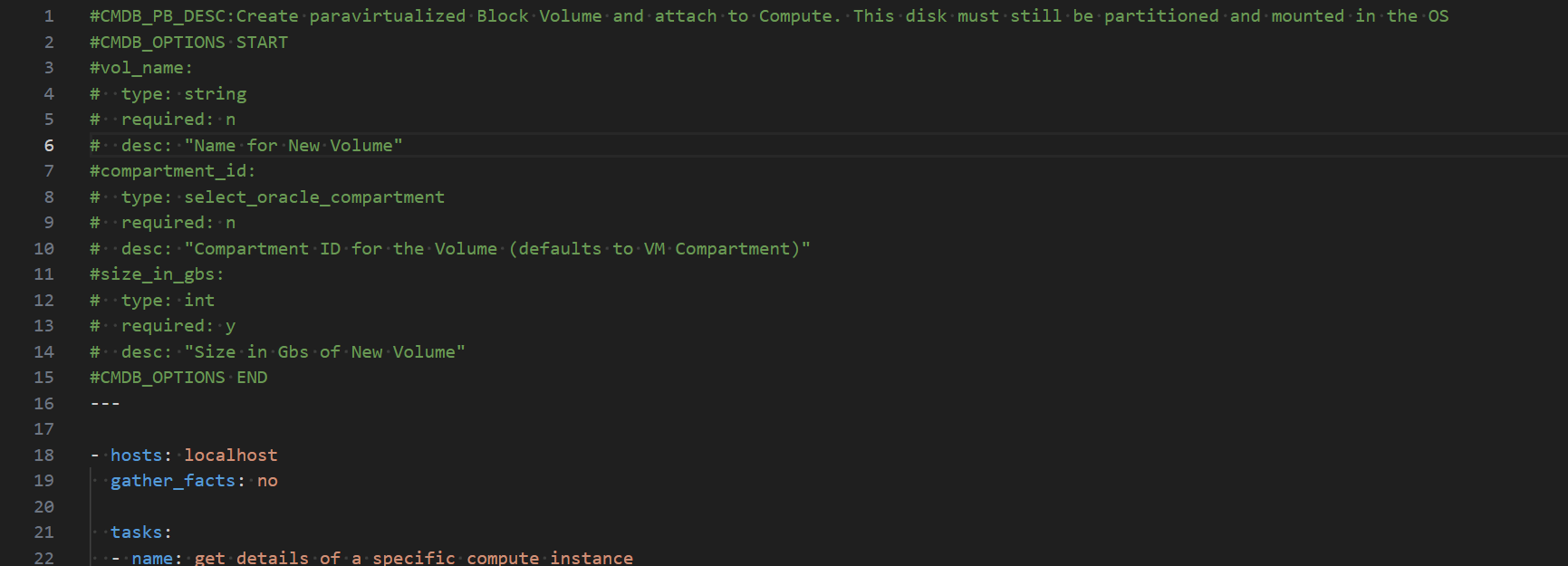
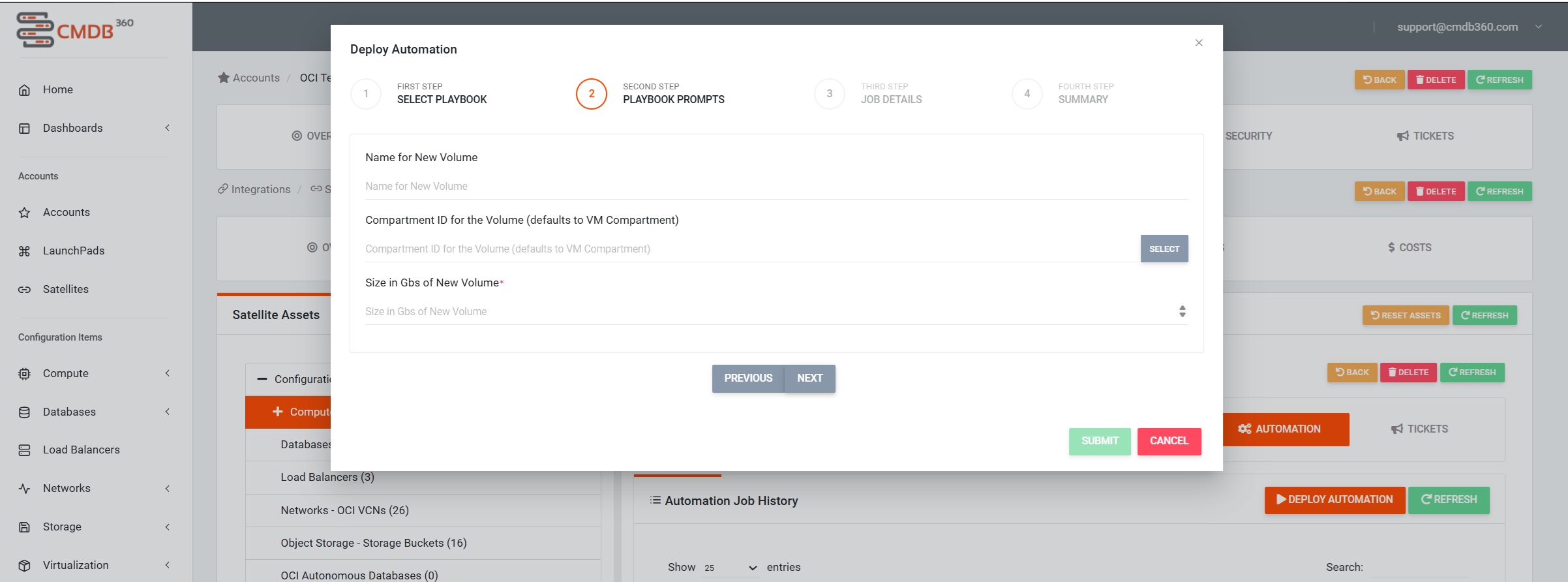
And here is how the first playbook above looks when asking the user for input. Note the Select button on the right hand side of the Compartment ID field. Clicking that button will bring up a list of all available compartments in the tenancy. Or you may type the Compartment OCID into the input field.
# Understanding Cloud vs Machine access
The Ansible Satellite has two different levels of access. Cloud and Machine level. For Cloud methods, which are found in collections from Ansible and the cloud providers, no ssh access is needed. If changes are being made on the machine (writing files, modifing users, etc) machine level access is required. For both types of access, credential files and vault entries are required.
Cloud access uses the cloud configuration for that provider in your vault. For example, for OCI it uses the oci_config and oci_api_key provided when you create an API key in OCI. This information is then stored in an encrypted credential file that only your CMDB-360 understand. Vault entries in your CMDB-360 Automation Credentials Vault provide a list of known credentials for your account. See https://docs.cmdb360.com/docs/Satellites/Ansible-satellite/Vault/VaultOverview for more infomation on crediential files and your CMDB-360 vault.
Cloud tasks must be run from the Ansible Satellite and not the device itself. As such, the hosts inventory for the play should be localhost or the task should be delegated to localhost.
Machine access uses credentials stored in your credentials files and linked to entries in your vault. These files can only be used by your account login to CMDB-360. No other user will be able to unencrypt them even if they have the credentials file. It also uses the ssh user and port provided to the playbook run found under the System Access tab of Under Properties for each Compute CI. CMDB-360 provides a dynamic inventory to the anisble playbook. As such a host inventory of ‘all’ should be used when running tasks on the device to allow conncetion to the proper machine.
It is important to understand which access is required for the Ansible task you are trying to execute.
# Key points
-
If the playbook only calls cloud methods, use an inventory of ‘localhost’ and not ‘all’ on the hosts line of the playbook. This will not attempt an ssh connection to the machine which could significantly increase the speed of the play and not require SSH credentials
-
For security reasons, cloud authorization parameters that are stored in an encrpyted credentials file linked to an entry in your Automation Credentials Vault. You may store these using wahtever method you like. In Keeper of a private directory on your workstation. These are can not be used by any other CMDB-360 user. Calls to methods for clouds must occur from the controller node as its environment is properly set up access to the cloud services. For playbook runs, this can be accomplished either using localhost as the inventoryon the hosts line of the playbook (
- hosts: localhost) or by usingdelegate_to: localhostas a parameter to any cloud method called when machine level access is required andallis used as the inventory on the hosts line.